
Cyclo Manager
Cyclo Manager is the web-based control panel on the AI Worker Orin. Install it with the CLI, open the UI on port 3000, then use the sections below to bring up the robot, inspect ROS 2 topics, manage containers, and run tools such as Dynamixel Wizard 2.0 via noVNC.
Contents
- Install Cyclo Manager CLI
- Open the Cyclo Manager Web UI
- Cyclo Manager Home Page
- Bring up the Robot (Follower/Leader)
- Bring up the Physical AI Server and Zenoh Daemon
- Set Robot Pack Position
- View ROS 2 Topics and Messages
- Change ROS_DOMAIN_ID
- Run Commands in a Container
- Use Dynamixel Wizard 2.0 on noVNC
Install Cyclo Manager CLI
Cyclo Manager runs inside Docker containers. The Python package cyclo-manager on PyPI provides the cyclo_manager CLI, which uses Docker images and Compose to bring up and configure the container stack.
INFO
Cyclo Manager runs on the AI Worker Orin. Install it on the AI Worker Orin.
- Connect to the AI Worker Orin via SSH.
Replace SNPR48A0000 with the serial number printed on the back of the robot body.
ssh robotis@ffw-SNPR48A0000.local- Install the Python package
cyclo-manageron the AI Worker Orin.
pip install cyclo-manager- Add the CLI to your
PATHand create the containers.
export PATH="$HOME/.local/bin:$PATH"
cyclo_manager up
CLI commands
Use the cyclo_manager CLI from your terminal:
cyclo_manager up   # optional: --pull to fetch the latest images from the registry
cyclo_manager down
cyclo_manager update
cyclo_manager up:- Starts the cyclo_manager (API) and cyclo_manager_ui containers. It also creates the novnc-server and zenoh-daemon containers but does not start them yet (start them later when needed).
cyclo_manager down:- Stops and removes the containers created by
cyclo_manager upfor this stack (same role as docker compose down).
- Stops and removes the containers created by
cyclo_manager update:- Runs down, upgrades the CLI with pip install -U cyclo-manager, then runs up again so you are on the latest package and images.
Open the Cyclo Manager Web UI
Open the Cyclo Manager web UI on port 3000 in your browser.
INFO
Connect using the robot IP address or the mDNS hostname. Replace SNPR48A0000 with your robot serial number.
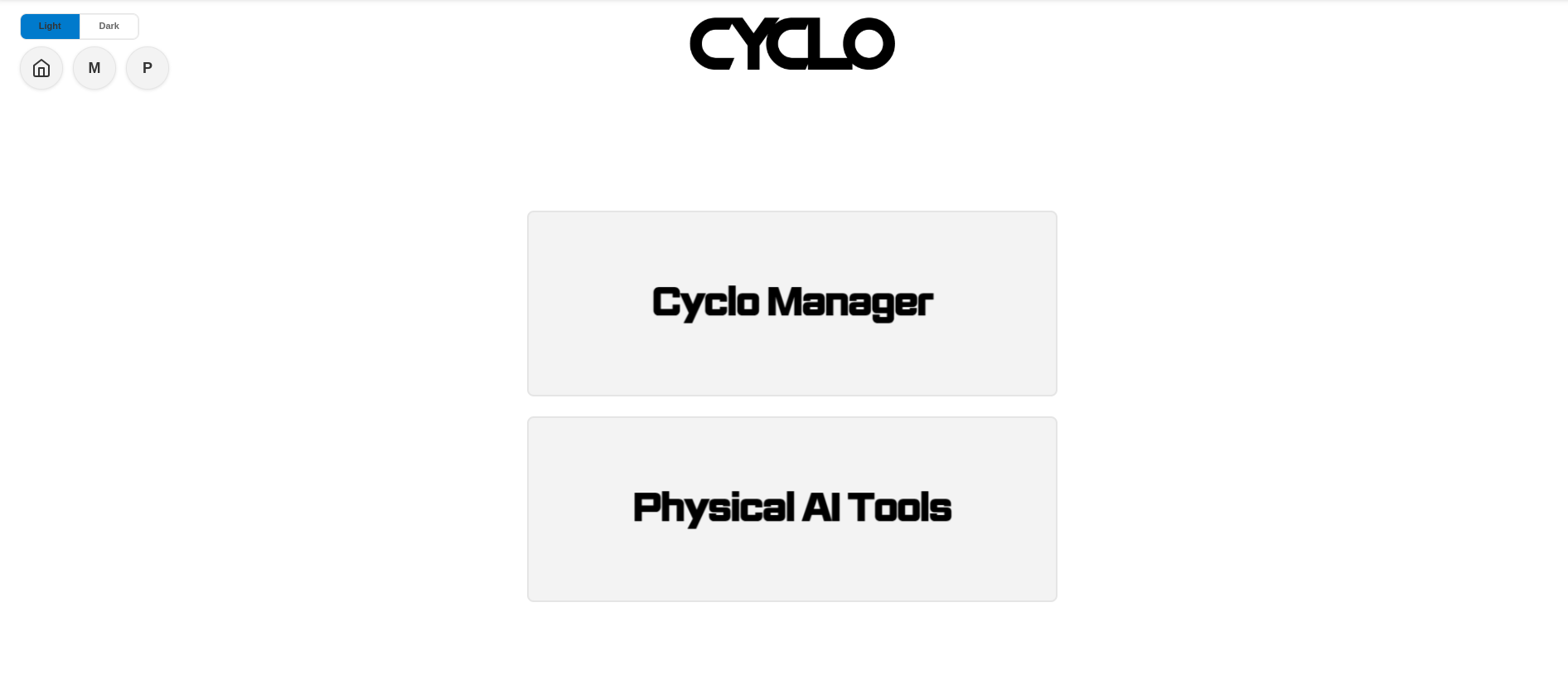
This is the main page of the Cyclo Manager web UI. From here, you can open the Cyclo Manager or Physical AI Tools pages.
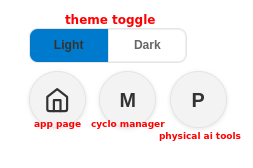
The top-left toolbar provides quick access to the main areas of the web UI:
- Theme toggle: Switch between light and dark UI themes.
- Home: Return to the app page.
- M: Navigate to the Cyclo Manager home page.
- P: Navigate to the Physical AI Tools page.
Cyclo Manager Home Page
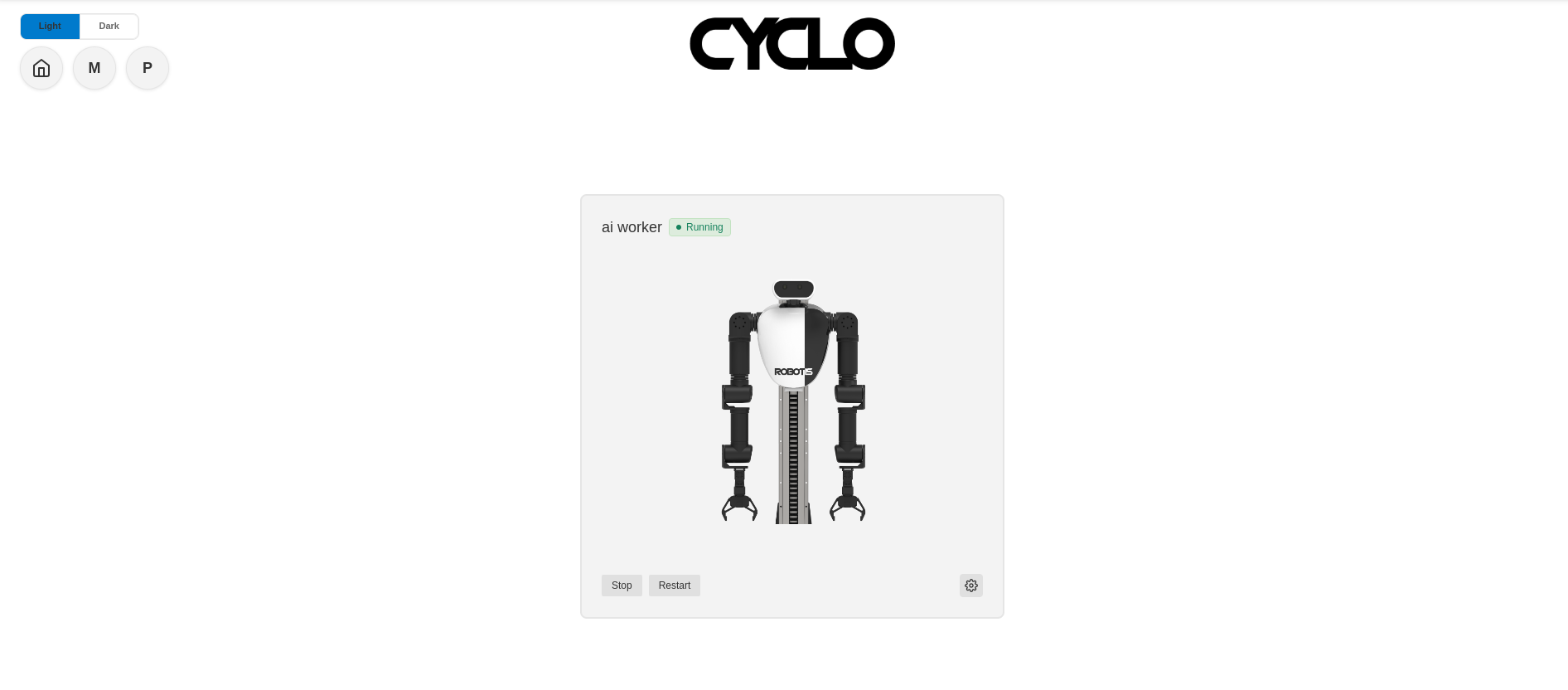
This page shows containers running on the system that Cyclo Manager manages. Select a container to manage it.
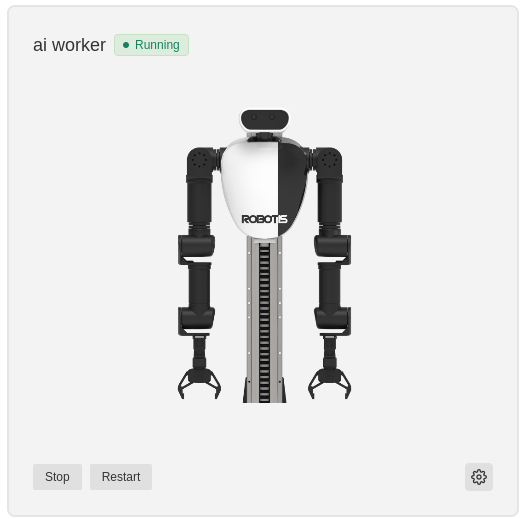
In the container card, you can check the container status and start or stop the container. After you open a container, use the left sidebar to open System, Topic, Docker, or noVNC.
Bring up the Robot (Follower/Leader)
From the Home page, select the robot container to open the System page. On the System page, you can bring up the robot, the Physical AI server, and the Zenoh daemon.
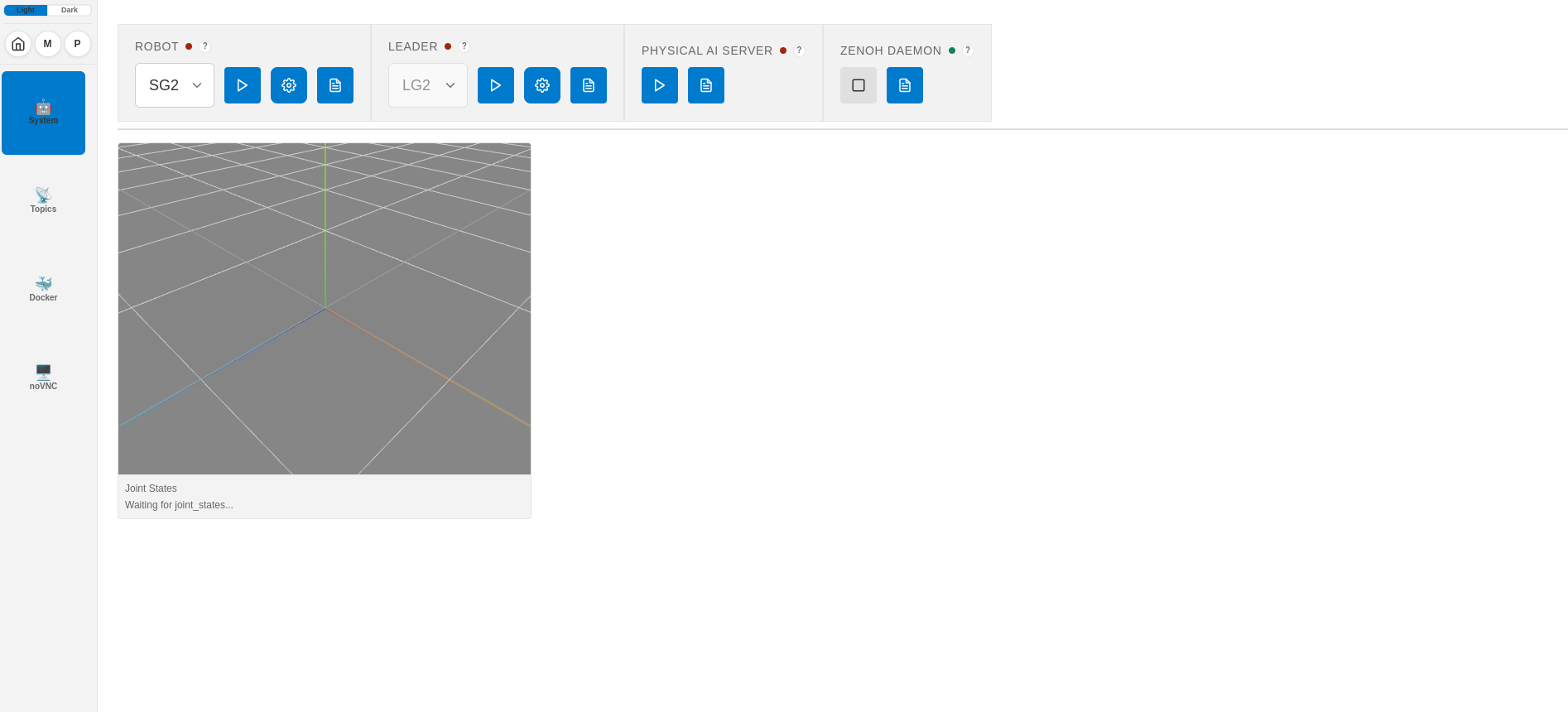
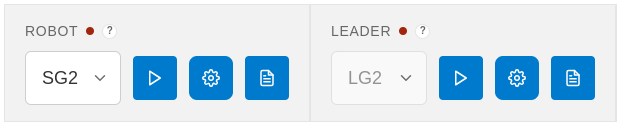
- Robot Type Selection: Select the robot model to bring up (SG2, BG2, SH5, BH5).
- Robot Bringup Button: Bring up the robot.
- Parameter Setup: Open launch parameters (gear icon ⚙️).
- Logs: View robot bring-up logs.
- Status Light: Red indicates the robot is not running. Green indicates the robot is running.
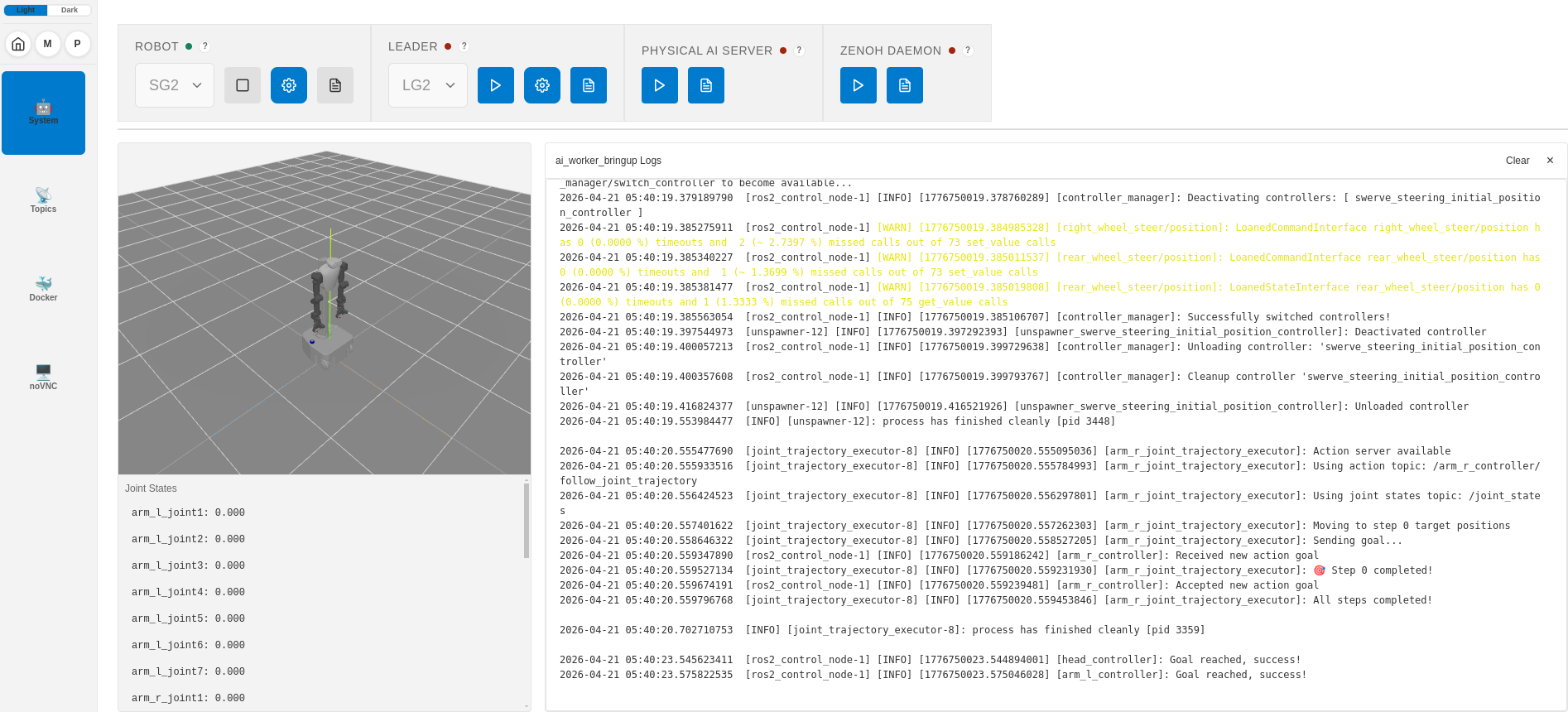
After you click the Robot Bringup button, the robot stack starts and the 3D model is displayed. Click Logs to view bring-up output.
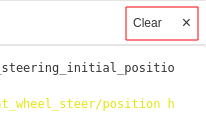
Log Clear Button Description
Robot bring-up logs are stored in the AI Worker container at /var/log/ai_worker_bringup/current.
On the System page, you can delete stored robot bring-up logs using the Clear button.
Bring up the Physical AI Server and Zenoh Daemon
On the System page, click the Bringup button in the Physical AI Server and Zenoh Daemon section to start both services.
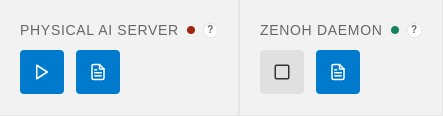
- Bringup Button: Bring up the Physical AI server and Zenoh daemon.
- Logs: View service logs.
- Status Light: Red indicates the services are not running. Green indicates they are running.
Set Robot Pack Position
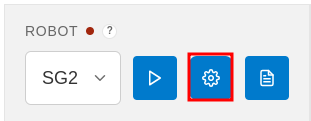 Click the gear icon (⚙️) to configure the robot parameters on the System page.
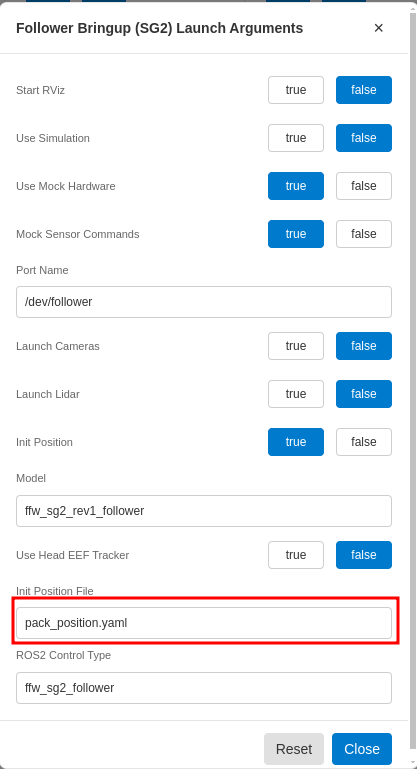
Set Init Position File to pack_position.yaml.
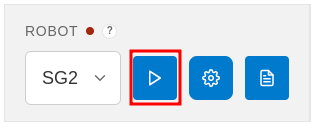
Then bring up the robot by clicking the Robot Bringup button. The robot moves to the pack position defined in pack_position.yaml during bring-up. When you are done, click the Robot Stop button to stop the robot.
View ROS 2 Topics and Messages
From the Home page, open the robot container, then select Topic in the left sidebar.
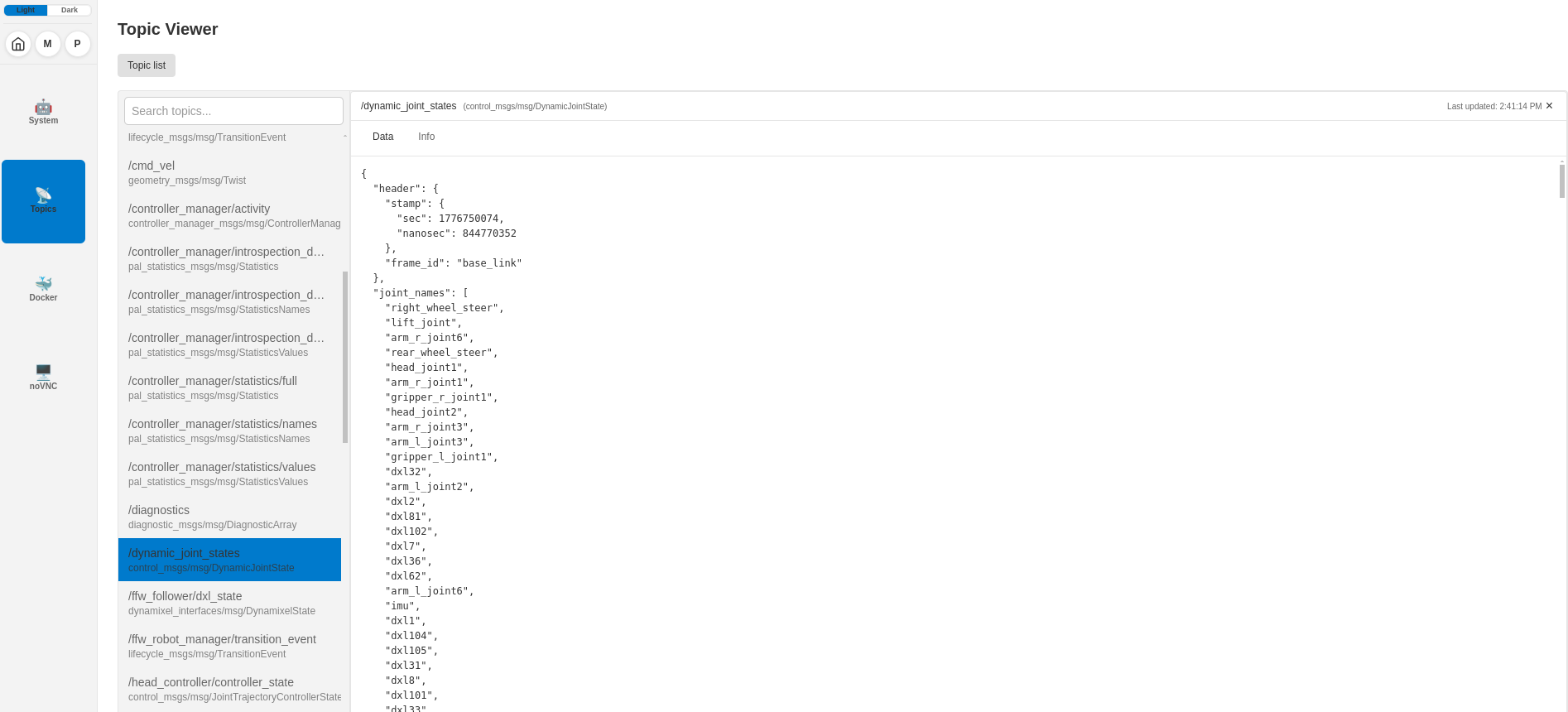
Click Topic list to show available ROS 2 topics and inspect message data.
If the topic list is empty, check that ROS_DOMAIN_ID matches between the Cyclo Manager container and the AI Worker container. To change it, see Change ROS_DOMAIN_ID.
Change ROS_DOMAIN_ID
From the Home page, open a container, then select Docker in the left sidebar.
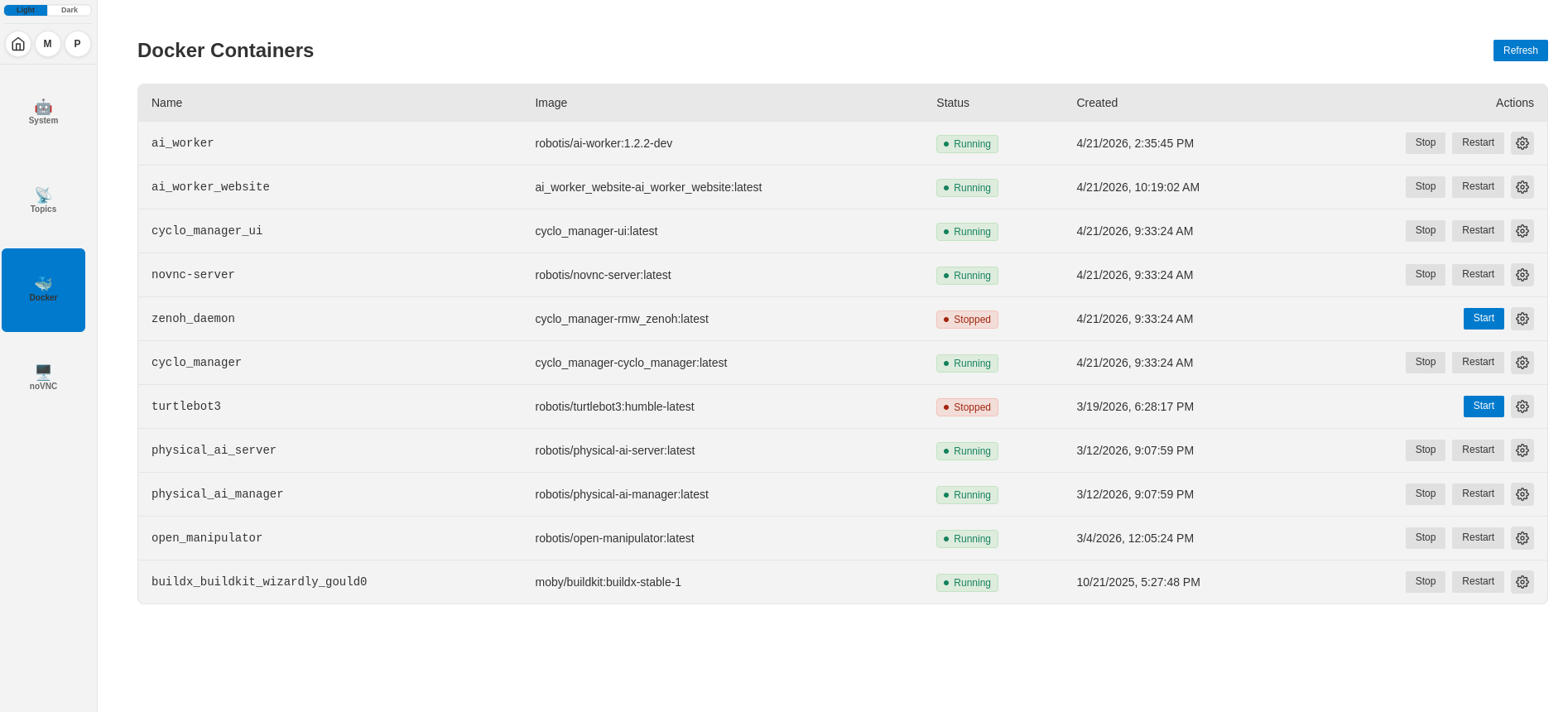
Click the gear icon (⚙️) and open the .bashrc section. Set ROS_DOMAIN_ID to the same value on every container that must communicate over ROS 2 (for example export ROS_DOMAIN_ID=30).
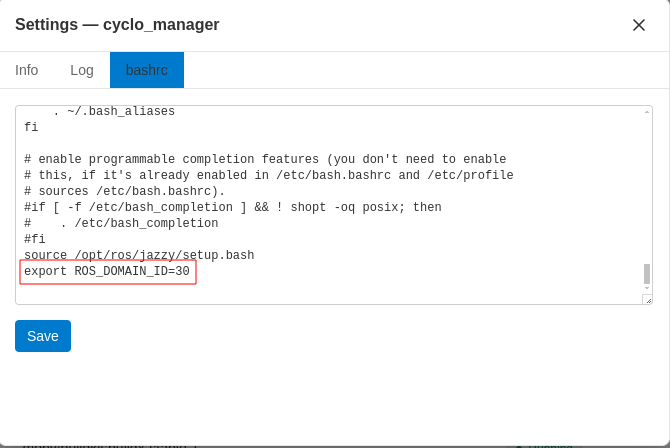
After you save .bashrc, click Restart to restart the container.
INFO
Environment variables in the container are managed in the .bashrc file.
Run Commands in a Container
From the Docker page, click Terminal to open the in-container shell.
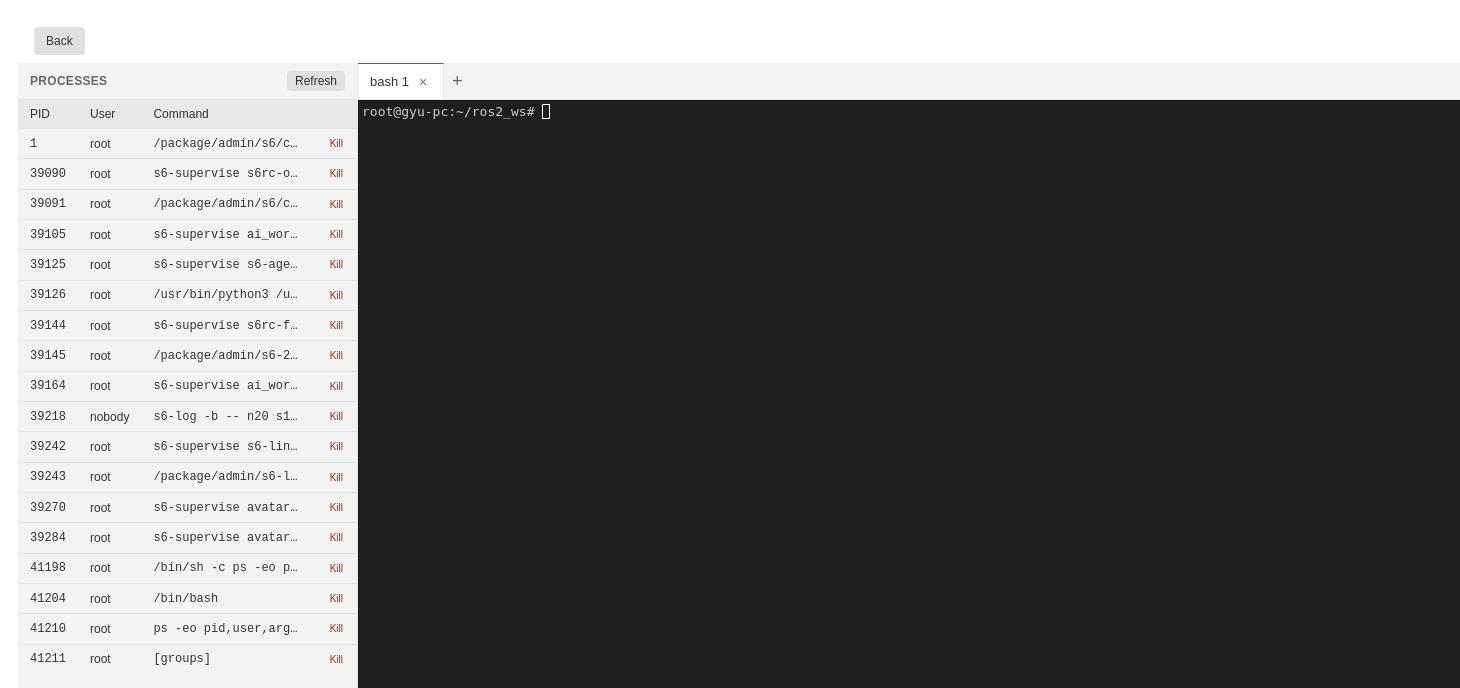
Use a bash terminal to run commands and manage processes inside the container without using SSH to access the container.
Use Dynamixel Wizard 2.0 on noVNC
From the Home page, open the robot container, then select noVNC in the left sidebar.
- Click the Start control at the top of the page to start the noVNC container.
- Reload the page (for example press F5).
- Open the Dynamixel Wizard 2.0 icon on the desktop.
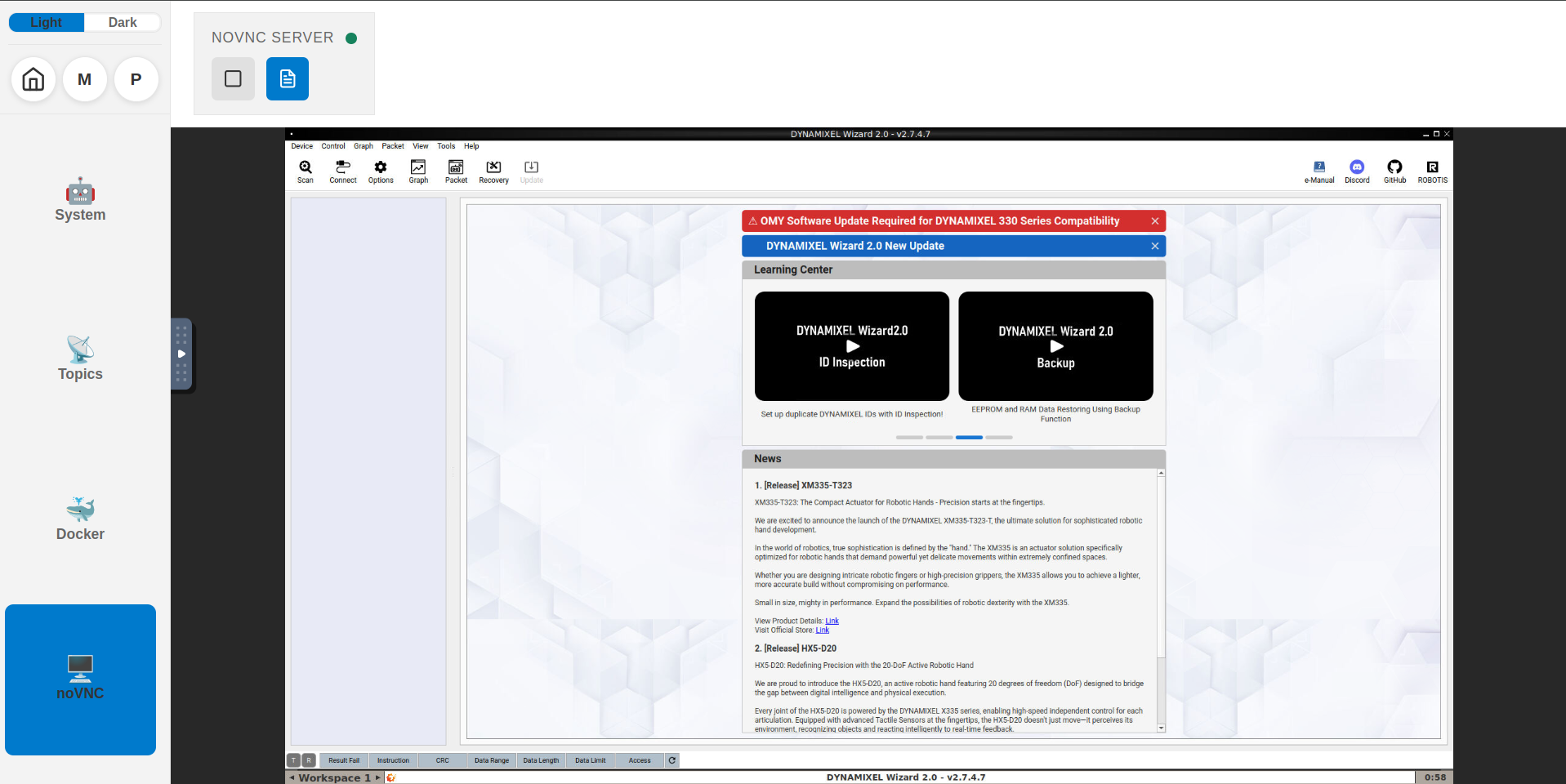
You can diagnose and control motors in the browser without attaching a display or laptop to the AI Worker.