
Software Setup
This guide explains how to connect to the robot PC and prepare a development environment for AI Worker on a separate user PC.
INFO
The robot PC inside AI Worker is already pre-configured. Follow this guide when you want to access the robot remotely or set up a development environment on your own machine.
Accessing the Robot PC via SSH
AI Worker supports mDNS, allowing you to connect without manually checking the IP address.
Connect the SBC (robot PC) to the same network as your user PC using a LAN cable.
On your user PC terminal, run:
bashssh robotis@ffw-SNPR48A0000.local
Replace SNPR48A0000 with the serial number printed on the back of the robot body. 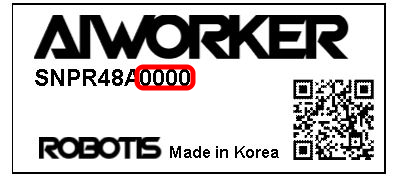 3. When prompted, enter the system password
 root.
If hostname-based access is not available, use one of the following methods:
- Connect both your user PC and the AI Worker LAN port to the same router using Ethernet cables, then try SSH again.
- Connect a monitor to the Orin via HDMI, log in locally, and check the current IP address before connecting through SSH.
Development Environment Overview
AI Worker relies on two main repositories:
- ai_worker: Provides support for controlling DYNAMIXEL actuators using
ros2_controland enables teleoperation functionality. - physical_ai_tools: Provides tools for data collection, training, model inference, and visualization.
DANGER
⚠️ On the AI Worker Orin: Do not run apt upgrade. Upgrading system packages may create conflicts and break robot functionality.
Prerequisites
- Operating System: Ubuntu environment
- The AI WORKER software runs inside a Docker container based on
Ubuntu 24.04 (ROS 2 Jazzy), so the host Ubuntu version on the user PC does not need to match exactly.
- The AI WORKER software runs inside a Docker container based on
- Container Engine: Docker Engine
- Follow the official Docker installation guide
- Complete the post-installation steps
- Required steps:
- Install Docker Engine using the repository method
- Add your user to the
dockergroup - Enable Docker to start on boot
- Verify the installation with
docker run hello-world
- Version Control: Git
- Graphics Support
- NVIDIA Graphics Driver
- (In Docker-based environments, the container is generally isolated from the host system. However, the graphics driver version on the host can have a direct impact on performance and compatibility—especially when using GPU acceleration. We recommend using the following driver version(s) for best results)
- Install
nvidia-driver-570-server-openforCUDA 12.8 - Verify the driver with
nvidia-smi
- NVIDIA Container Toolkit
- Follow the official installation guide
- Required steps:
- Configure the production repository
- Install
nvidia-container-toolkit - Configure Docker runtime using
nvidia-ctk - Restart the Docker daemon
- For more details, see the Docker configuration guide
- NVIDIA Graphics Driver
Configuration
Docker Volume Management
The Docker container uses the following volume mappings for data persistence and hardware access:
volumes:
  # Hardware and System Access
  - /dev:/dev
  - /tmp/.X11-unix:/tmp/.X11-unix:rw
  - /tmp/.docker.xauth:/tmp/.docker.xauth:rw

  # Development and Data Storage
  - ./workspace:/workspace
  - ../:/root/ros2_ws/src/ai_worker/
  - ./lerobot/outputs:/root/ros2_ws/src/physical_ai_tools/lerobot/outputs
  - ./huggingface:/root/.cache/huggingface
WARNING
Container data is volatile and will be lost when the container is removed. Store important files in mapped volumes such as /workspace, the mapped source directory, model output directories, and the Hugging Face cache.
Container Management
Clone the repository:
bashcd ~/ # or your preferred directory git clone -b jazzy https://github.com/ROBOTIS-GIT/ai_worker.git cd ai_workerUse the
container.shhelper script to manage the container:bash./docker/container.sh start ./docker/container.sh enter ./docker/container.sh stop
Docker Command Guide
The container.sh script provides the following commands:
help: Display the help message.start: Start the AI Worker container.enter: Enter the running container.stop: Stop the AI Worker container.
Example usage:
./container.sh help
./container.sh start
./container.sh enter
./container.sh stop
Software Update Guide
Follow these steps to update the AI Worker or Physical AI Tools packages:
Move to the package directory:
bashcd /path/to/ai_worker_package # or cd /path/to/physical_ai_tools_packageSwitch to the
jazzybranch:bashgit checkout jazzyPull the latest code:
bashgit pullRestart the container:
bash./docker/container.sh stop ./docker/container.sh start
WARNING
Data stored outside mapped volumes may be lost during container restart. Save important files before restarting the container.
Checking Battery State
The FFW-SG2 model has two batteries. The FFW-BG2 model does not use a battery.
To check the battery state, run:
# Check the left battery
ros2 topic echo /ai_worker/battery/left/state --once

# Check the right battery
ros2 topic echo /ai_worker/battery/right/state --once
The output includes the following keys:
frame_id: Identifies which battery the message refers to.bashframe_id: battery_leftvoltage: Shows the current battery voltage.bashvoltage: 28.700000762939453 # Battery voltage 28.7Vpercentage: Shows the remaining battery level as a value from0.0to1.0.bashpercentage: 0.934949517250061 # Battery 93% charged