
Cyclo Intelligence
Cyclo Intelligence is a Physical AI workflow system for robots. It can be used with OMY, OMX, AI Worker, and other robots that provide ROS 2 topics.
It provides a web UI for collecting datasets, managing datasets, converting datasets to LeRobot format, and deploying trained models.
Cyclo Intelligence is organized around two major subsystems.
Cyclo Data handles dataset collection, dataset management, and LeRobot conversion. Cyclo Brain handles policy runtime, model loading, and robot inference.
Start Cyclo Intelligence
Start from the Cyclo Intelligence repository on the robot PC.
For a first-time installation:
ROBOT PC
bash
cd $HOME
git clone --recurse-submodules https://github.com/ROBOTIS-GIT/cyclo_intelligence.git
cd $HOME/cyclo_intelligence
./docker/container.sh start
For an existing installation:
bash
cd $HOME/cyclo_intelligence
git pull
git submodule update --init --recursive
./docker/container.sh start
Common container commands:
| Command | Description |
|---|---|
./docker/container.sh start | Pull the published image if needed and start Cyclo Intelligence. |
./docker/container.sh status | Check the service status inside the running containers. |
./docker/container.sh logs | Tail Cyclo Intelligence logs. |
./docker/container.sh enter | Open an interactive shell inside the Cyclo Intelligence container. |
./docker/container.sh stop | Stop and remove compose-managed containers. |
Open the web UI in your browser.
text
http://<robot-ip>/For local access on the robot:
text
http://127.0.0.1/The container uses /workspace as its working data directory. On the host, this is bind-mounted from:
text
$HOME/cyclo_intelligence/docker/workspaceHome Page
On the Home page, select the robot type before using Record or Inference.
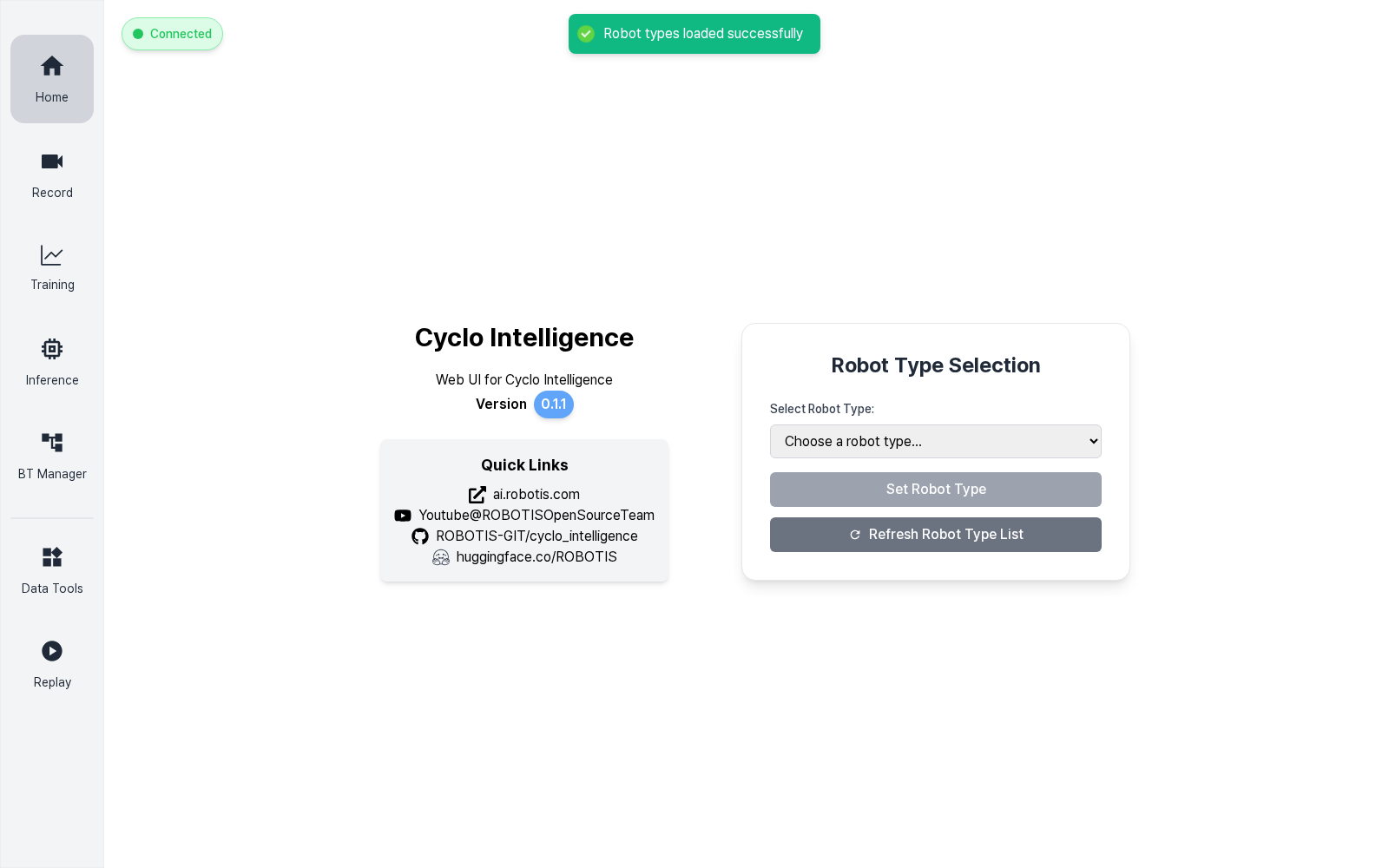
- Click
Refresh Robot Type List. - Select the current robot in
Select Robot Type. - Click
Set Robot Type. - Check that the UI changes to the connected state.
The selected robot type is used by the orchestrator, recording pipeline, dataset conversion options, and Cyclo Brain inference runtime.
Cyclo Data Workflow
Cyclo Data System Architecture
Cyclo Data is operated from the Web UI. The user records robot demonstrations, edits the collected dataset with Data Tools, converts it to LeRobot format, and uploads or downloads datasets and models through Hugging Face.
UIrecorddata toolsconvertHub
- Camera streams are stored as MP4 files with frame timestamps.
- Non-camera ROS 2 topics are stored in MCAP format.
- Camera rotation is saved according to the robot config file.
- Each save creates an episode dataset.
- Delete unnecessary or failed episodes.
- Merge multiple collected datasets.
- Keep the dataset organized before conversion.
- Select the target FPS for LeRobot conversion.
- Align sensor/action timelines and video frames.
- Write LeRobot v2.1 and/or v3.0 output.
- Upload collected or converted datasets.
- Download datasets for editing or conversion.
- Download models for later deployment.
Record Page
The Record page collects robot demonstrations and stores them through cyclo_data.
The current Record page is organized around a top status and control bar, a live image grid, a lower monitoring area, and a collapsible Task Information panel.
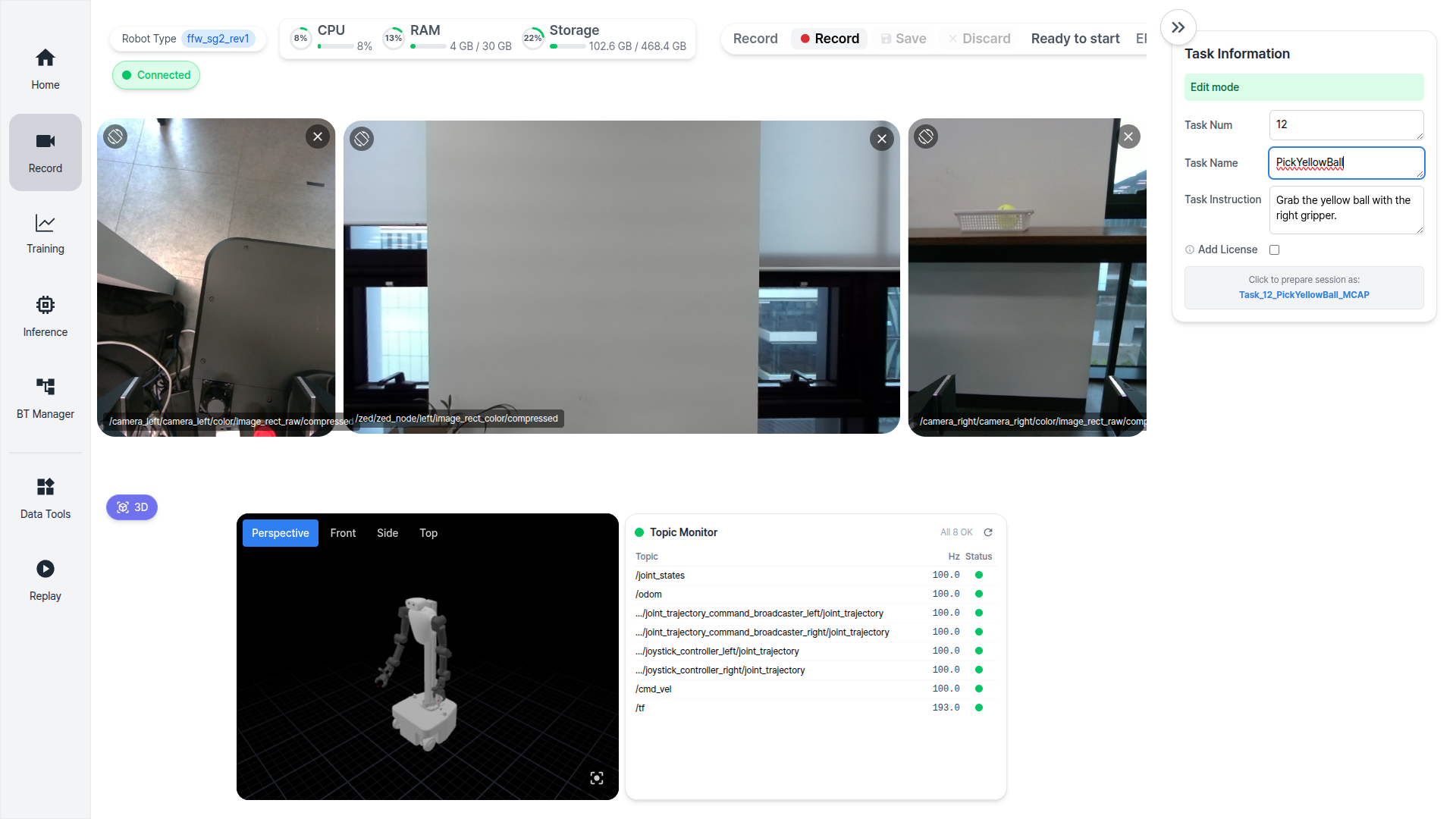
| Area | Description |
|---|---|
| Top status and control bar | Robot type, joystick mode, system status, and recording control buttons. |
| Center image grid | Camera streams selected from the robot topics. |
| Lower monitoring area | 3D robot viewer and Record Topic Monitor. |
| Right Task Information panel | Task number, task name, task instruction, and session preparation. |
Recording Workflow
- Open the
Recordpage after setting the robot type. - Select or confirm the camera topics shown in the center view.
- Fill out
Task Num,Task Name, andTask Instruction. - Click the session preparation button to arm the task on the orchestrator.
- Use
Record,Save, orDiscardfrom the top control bar as needed.
Collected Dataset Location
Collected rosbag2 datasets are stored under /workspace/rosbag2 inside the Cyclo Intelligence container.
Container path:
text
/workspace/rosbag2/<dataset_name>/<episode_index>/Host path:
text
$HOME/cyclo_intelligence/docker/workspace/rosbag2/<dataset_name>/<episode_index>/Example:
text
/workspace/rosbag2/Task_1_1_MCAP/0/Episode Folder Structure
Each episode is stored as a self-contained folder.
text
<episode_index>/
|-- metadata.yaml
|-- episode_info.json
|-- 0_0.mcap
|-- videos/
|   |-- cam_head_left.mp4
|   |-- cam_head_left_timestamps.parquet
|   |-- cam_head_right.mp4
|   |-- cam_head_right_timestamps.parquet
|   |-- cam_wrist_left.mp4
|   |-- cam_wrist_left_timestamps.parquet
|   |-- cam_wrist_right.mp4
|   `-- cam_wrist_right_timestamps.parquet
`-- camera_info/
    |-- cam_head_left.yaml
    |-- cam_head_right.yaml
    |-- cam_wrist_left.yaml
`-- cam_wrist_right.yaml| File or folder | Purpose |
|---|---|
metadata.yaml | rosbag2 metadata for the recorded episode. |
episode_info.json | Task instruction, episode metadata, recording diagnostics, and video status. |
*.mcap | rosbag2 MCAP file. Long recordings may be split into multiple MCAP files. |
videos/*.mp4 | Camera streams recorded as MP4 files. |
videos/*_timestamps.parquet | Per-camera frame timestamps used for accurate LeRobot video synchronization. |
camera_info/*.yaml | Camera calibration snapshots captured with the episode. |
TIP
Recording stores camera video and timestamp sidecars separately from MCAP. Compared with storing camera frames inside MCAP, MP4 video is more storage-efficient and keeps conversion faster because LeRobot video synchronization can use the MP4 file and timestamp Parquet directly.
Cyclo Data Backend Responsibilities
cyclo_data owns the data plane for Cyclo Intelligence. The UI sends a record command to the orchestrator, and the orchestrator forwards the request to cyclo_data. From there, cyclo_data handles the bag writer, video encoding, dataset conversion, dataset editing, and Hugging Face operations.
| Stage | Owner | Description |
|---|---|---|
| Record | cyclo_data + rosbag_recorder | Records robot topics and camera streams into a task folder. |
| Encode | cyclo_data.recorder | Writes camera streams as MP4 files and tracks recording metadata. |
| Convert | cyclo_data.converter | Converts MCAP and MP4 data into LeRobot dataset formats. |
| Manage | cyclo_data.editor / cyclo_data.hub | Edits datasets and uploads or downloads Hugging Face repositories. |
The recording status is published by cyclo_data on /data/recording/status.
| Status | Meaning |
|---|---|
READY | The recorder is idle and ready for a new session. |
RECORDING | The current episode is being recorded. |
SAVING | The episode is being finalized and encoded. |
CONVERTING | The collected dataset is being converted from rosbag and MP4 into LeRobot dataset output. |
PAUSED | Recording is paused and can be resumed. |
Data Tools Page
The dataset tools use the same cyclo_data backend as recording.
Use Dataset Tools to manage collected datasets, move datasets or models through Hugging Face, and convert rosbag2 task folders into LeRobot dataset outputs.
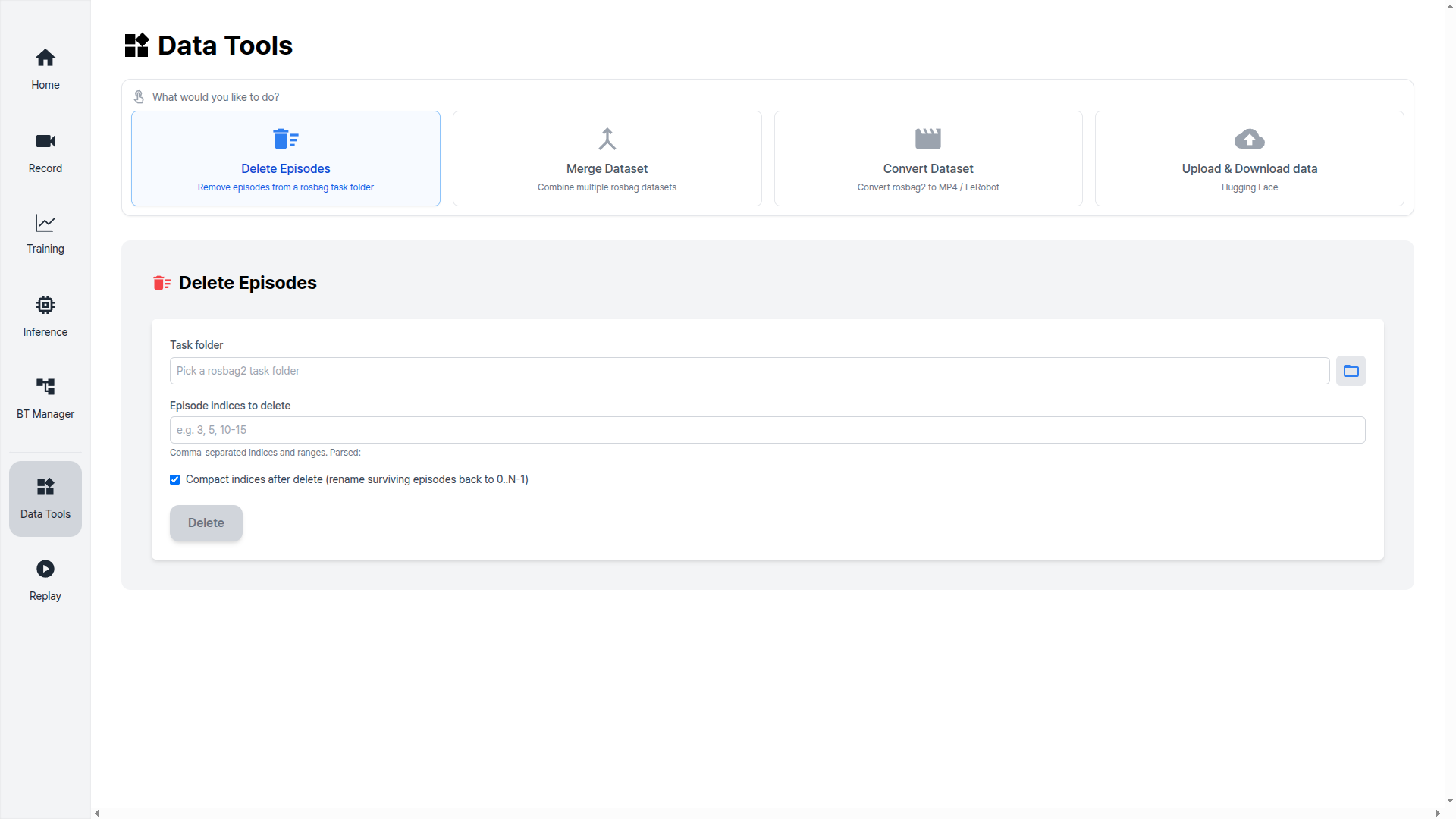
| Tool | Description |
|---|---|
| Delete Episodes | Removes selected episodes from a dataset. |
| Merge Dataset | Combines multiple rosbag task folders into a single output dataset. |
| Convert Dataset | Converts collected rosbag2 datasets into LeRobot dataset output. |
| Hugging Face upload/download | Manages dataset and model repositories through the configured Hugging Face endpoint. |
Long-running data operations publish progress through Cyclo Intelligence status topics so the UI can show conversion and Hub progress without blocking the recording workflow.
Convert to LeRobot Dataset
Use Convert Dataset when the collected rosbag2 dataset is ready to be converted into a LeRobot-compatible dataset.
- Open
Dataset Tools. - Select the dataset folder under
/workspace/rosbag2. - Choose the target FPS. If no FPS is specified, the converter uses the default conversion FPS.
- Select
LeRobot v2.1,LeRobot v3.0, or both. - Start conversion and wait until the progress status completes.
Conversion output is written under /workspace/lerobot.
| Output option | Example output path |
|---|---|
| LeRobot v2.1 | /workspace/lerobot/Task_1_1_MCAP_lerobot_v21 |
| LeRobot v3.0 | /workspace/lerobot/Task_1_1_MCAP_lerobot_v30 |
During conversion, Cyclo Data parses the recorded MCAP topics, aligns actions and observations to the requested FPS, selects the matching MP4 frames using the camera timestamp Parquet files, and writes the LeRobot dataset metadata, Parquet data, and synced videos.
TIP
In the current Cyclo Data conversion path, video synchronization streams selected MP4 frames directly into ffmpeg instead of creating temporary JPEG files. This reduces conversion time for recording-format-v2 datasets.
Hugging Face Dataset and Model Management
The Hugging Face tools can upload local folders or download remote repositories.
| Data type | Default local path |
|---|---|
| Dataset | /workspace/rosbag2 |
| Model | /workspace/model |
The folder browser opens from /workspace, so both collected datasets and downloaded models can be selected from the same root.
Cyclo Brain Workflow
Cyclo Brain is the model deployment and inference runtime inside Cyclo Intelligence. It runs policy backends as Docker containers and exposes them to the UI through one Inference page.
Cyclo Brain splits each policy backend into two processes.
| Process | Responsibility |
|---|---|
main-runtime | Receives external inference commands, owns session state, manages the action chunk buffer, and publishes robot command topics. |
engine-process | Loads the policy model, reads robot observations, and computes action chunks. It does not publish robot commands directly. |
The architecture map below shows how Host, main-runtime, engine-process, the open-source backend island, and Robot are connected.
Cyclo Brain System Architecture
Cyclo Brain separates command handling, model inference, open-source policy backends, and robot I/O into distinct runtime areas. The diagram below shows the system blocks first; detailed data flow is summarized after the diagram.
external commandengine request / action_listsensor / state readrobot command publishopen-source backend
Host
Command SourceUI / OrchestratorStandalone CLI argssame command shape
InferenceCommandLOAD / START / PAUSERESUME / STOP / UNLOADexternal service
Policy Container: <backend>_server
Main Runtime
main-runtimeServiceHandlercommand entry
main-runtimeSessionStateruntime gate
main-runtimeInferenceRequesterone GET_ACTION at a timetimeout + seq_id stale guard
main-runtimeActionChunkProcessorbuffer + optional match / RTCinterpolate / blend / smooth
main-runtimeControlLoopself-running tick
main-runtimeRobotClientcommand output
Engine Process
engine-processEngineWorkerhosts internal EngineCommand serviceusing Zenoh ROS2 SDK
engine-processBackend InferenceEnginemodel-specific implementationbehind stable contract
Policy LoadPreprocessPredictOptional Optimize
engine-processRobotClientobservation only
Open-source backend islandLeRobotGR00TFuture model
Robot
Sensors / StateObservation inputcamera, joints, base state
Command TopicsCommand outputcmd_vel, trajectory, etc.
- UI/CLI command enters Main. The command reaches
main-runtimethrough the external service. - Main requests Engine action.
InferenceRequestersends oneEngineCommandat a time. - Engine reads Robot observation. The engine-side
RobotClientreads camera, joint, and base state. - Engine returns action_list. The backend policy loads the model, preprocesses observations, predicts, and optionally optimizes.
- Main buffers/processes/publishes.
ActionChunkProcessorcan turn 16 actions into a 100 Hz buffer, andControlLooppublishes one action per tick.
The data flow is:
- The UI sends a
LOAD,START,STOP, orUNLOADstyle command. main-runtimereceives the command and updates the session state.main-runtimeasksengine-processto load a model or compute actions through an internal Zenoh service.engine-processreads robot observations, runs model inference, and returns an action chunk.main-runtimepushes the chunk into the action buffer and publishes one robot command per control-loop tick.
LeRobot and GR00T use the same runtime contract. The model loading, preprocessing, and prediction implementation are handled by each backend.
Inference Page
Use the Inference page to select a policy backend, start the matching Docker runtime, load a model, and run inference.
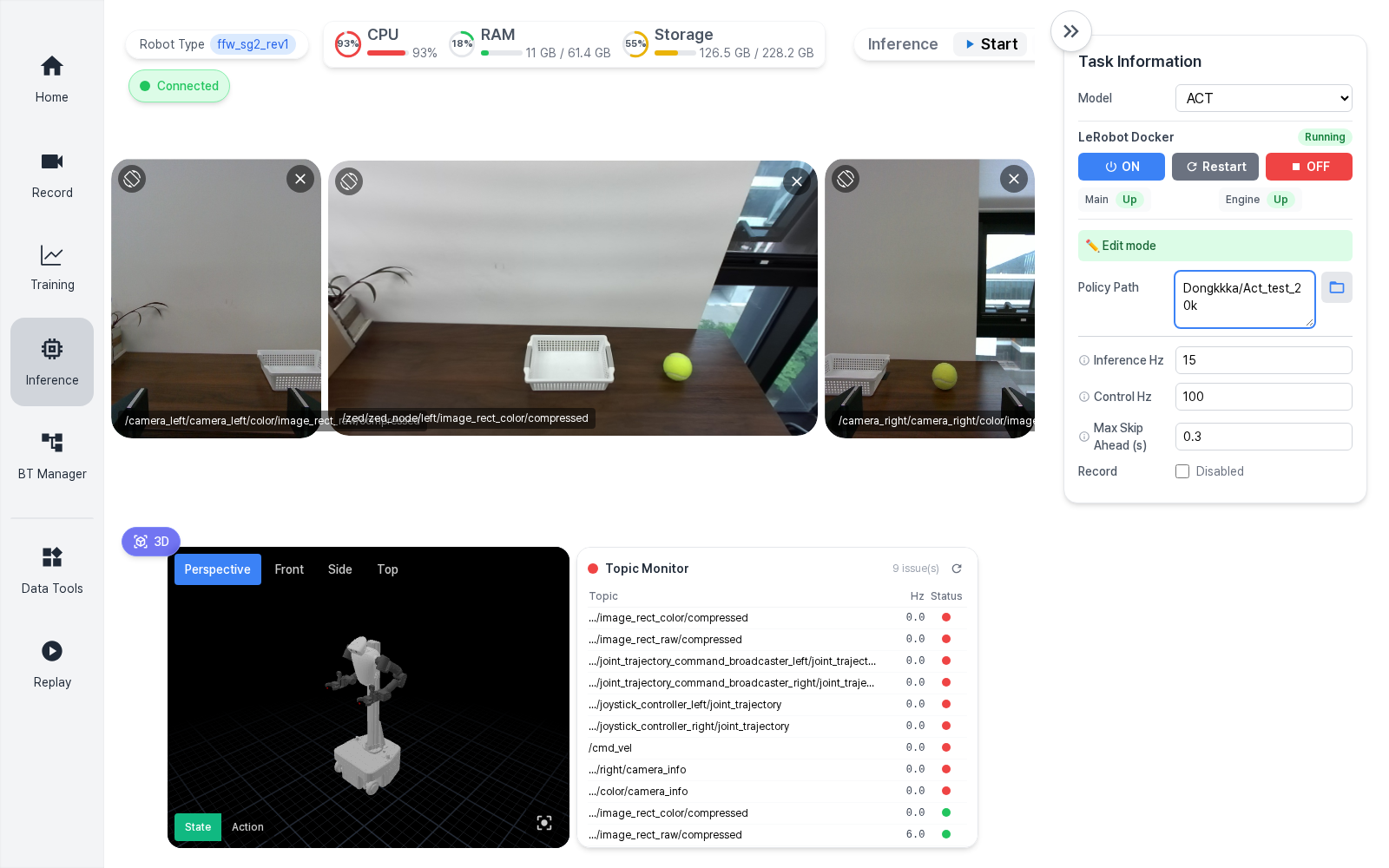
The top Inference control bar is shared by all backends.
| Button | Description |
|---|---|
Start | Loads the model and starts inference. In paused state, resumes inference when the policy path is unchanged. |
Stop | Pauses inference. The model remains loaded in memory. |
Clear | Stops inference and clears the model, session, and action buffer. |
Record | Starts recording inference results when recording is enabled. |
Save | Saves the current inference recording. |
Discard | Discards the current inference recording. |
If Start is disabled, check the Docker backend state in the right panel. Common causes are OFF, Image missing, Warming up, Main Down, or Engine Down.
Model Selection
On the Inference page, select the policy backend and model family from Task Information > Model.
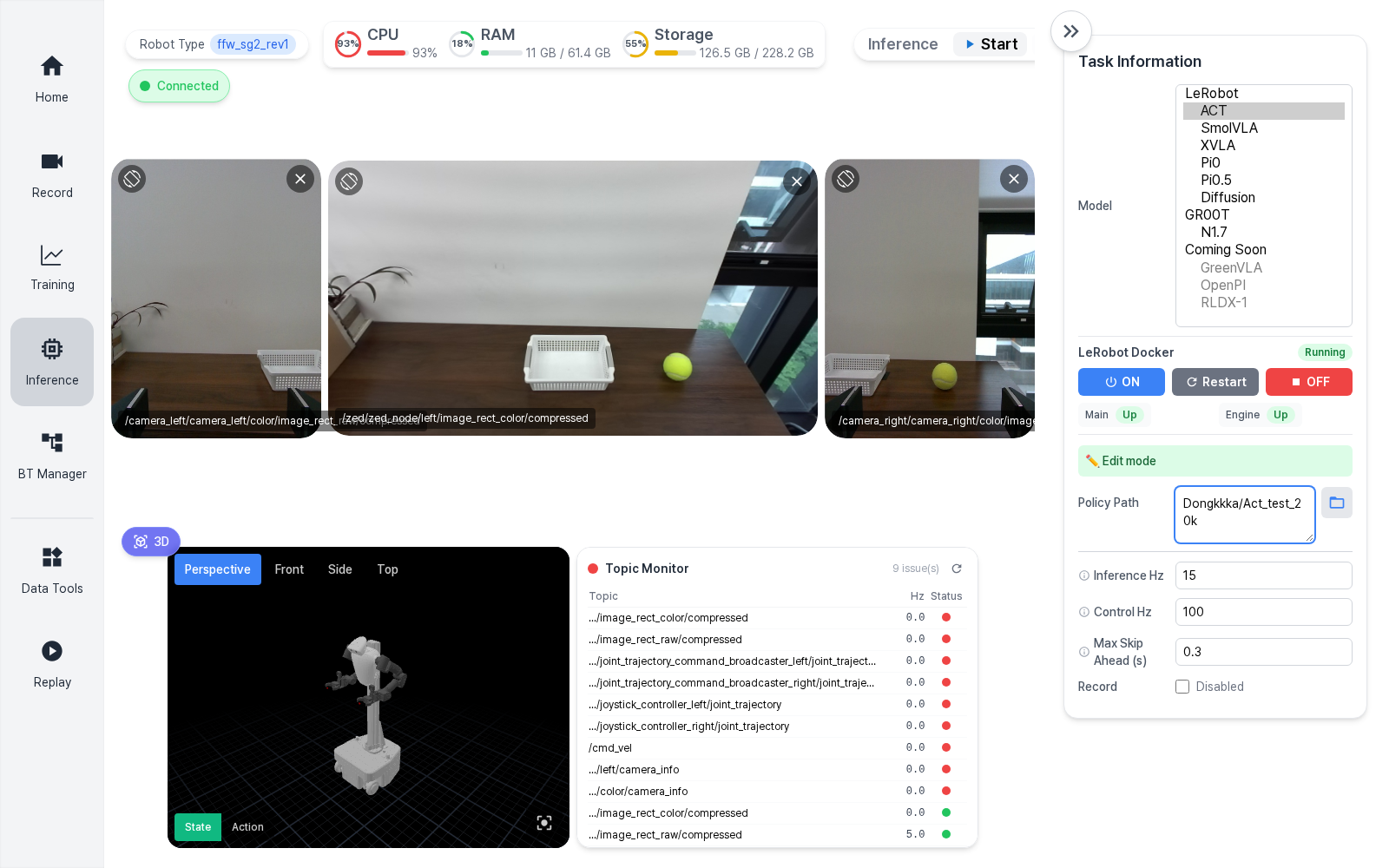
| Group | Model | Backend | Description |
|---|---|---|---|
| LeRobot | ACT | lerobot_server | Loads a LeRobot ACT checkpoint. |
| LeRobot | SmolVLA | lerobot_server | Loads a LeRobot SmolVLA checkpoint and uses task instructions. |
| LeRobot | XVLA | lerobot_server | Loads a LeRobot XVLA checkpoint and uses task instructions. |
| LeRobot | Pi0 | lerobot_server | Loads a LeRobot Pi0 checkpoint and uses task instructions. |
| LeRobot | Pi0.5 | lerobot_server | Loads a LeRobot Pi0.5 checkpoint and uses task instructions. |
| LeRobot | Diffusion | lerobot_server | Loads a LeRobot Diffusion checkpoint. |
| GR00T | GR00T N1.7 | groot_server | Loads an NVIDIA Isaac GR00T N1.7 checkpoint and uses task instructions. |
The following entries can appear in the UI but are disabled until their runtime path is validated.
GreenVLAOpenPIRLDX-1
Docker Backend Control
After selecting a model, the matching Docker backend control appears in the right panel.
| Button | Behavior |
|---|---|
ON | Creates or starts the matching policy container. If it is already running, it restarts the container to reset the runtime. |
Restart | Restarts the policy container. Use this after model-load failures, stale services, or CUDA memory cleanup needs. |
OFF | Stops the policy container without deleting the container or image. |
Two process states are shown for each backend.
| Process | Up means | If Down or Unknown |
|---|---|---|
Main | The main-runtime service is alive. | Press Restart to bring the backend up again. |
Engine | The engine-process service is alive. | Model loading or inference calls may fail. Press Restart first. |
Main Up and Engine Up mean the backend processes are alive. They do not mean that a model is already loaded. Model loading happens after pressing Start with the current Policy Path.
LeRobot Deployment
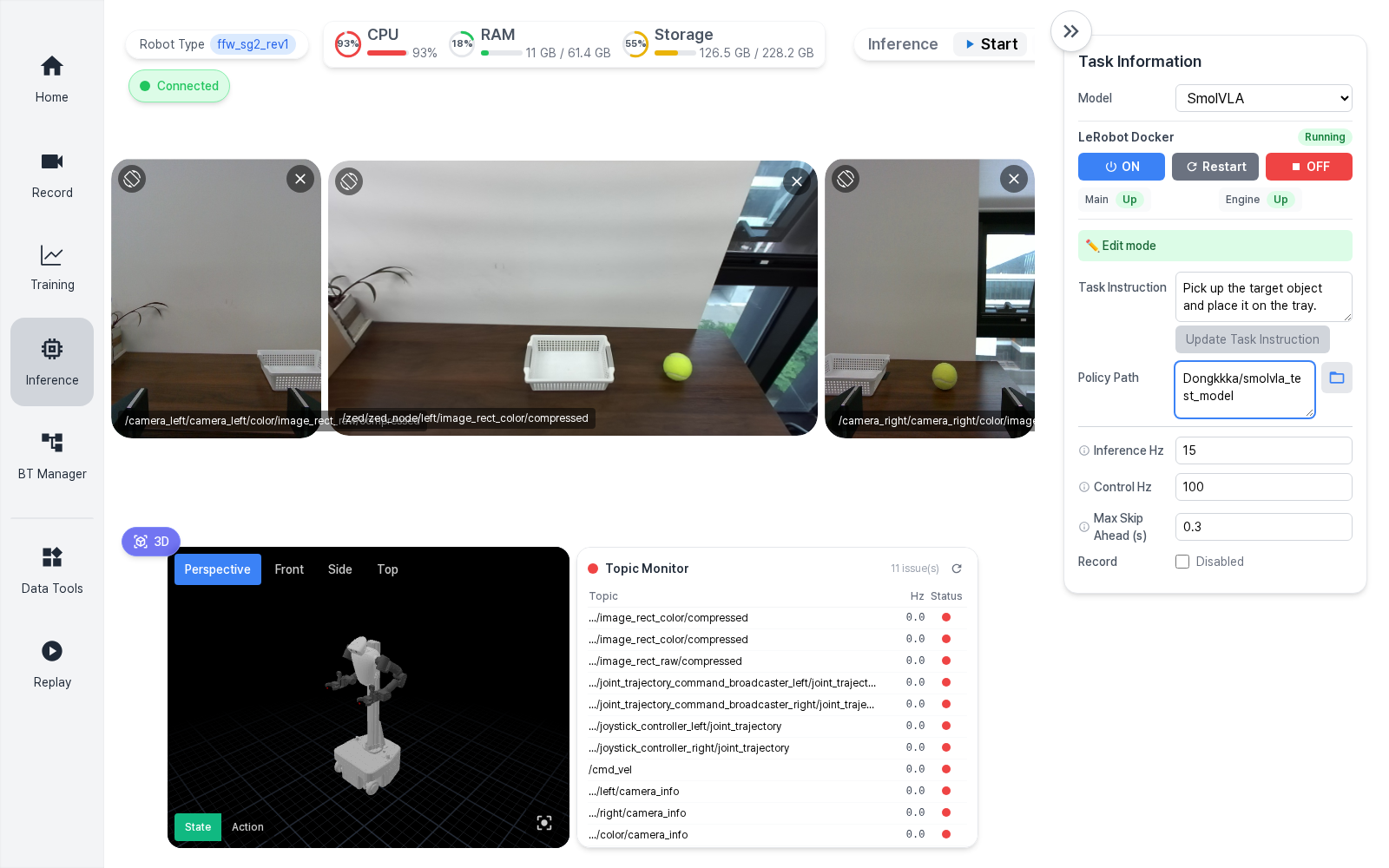
- Select a policy under the
LeRobotgroup. - Check that
LeRobot DockerisRunning. - Check that both
MainandEngineareUp. - Enter a Hugging Face repo ID or a local checkpoint path in
Policy Path. - For language-conditioned policies, enter
Task Instruction. - Set
Inference Hzto match the model action generation rate. - Set
Control Hzto match the robot command publish rate. - Click
Start.
Example Hugging Face repo ID:
text
ROBOTIS/Act_test_20kExample local checkpoint path:
text
/policy_checkpoints/lerobot/Act_test_20kACT and Diffusion do not use task instructions, so the task instruction field is hidden for those model families.
GR00T N1.7 Deployment
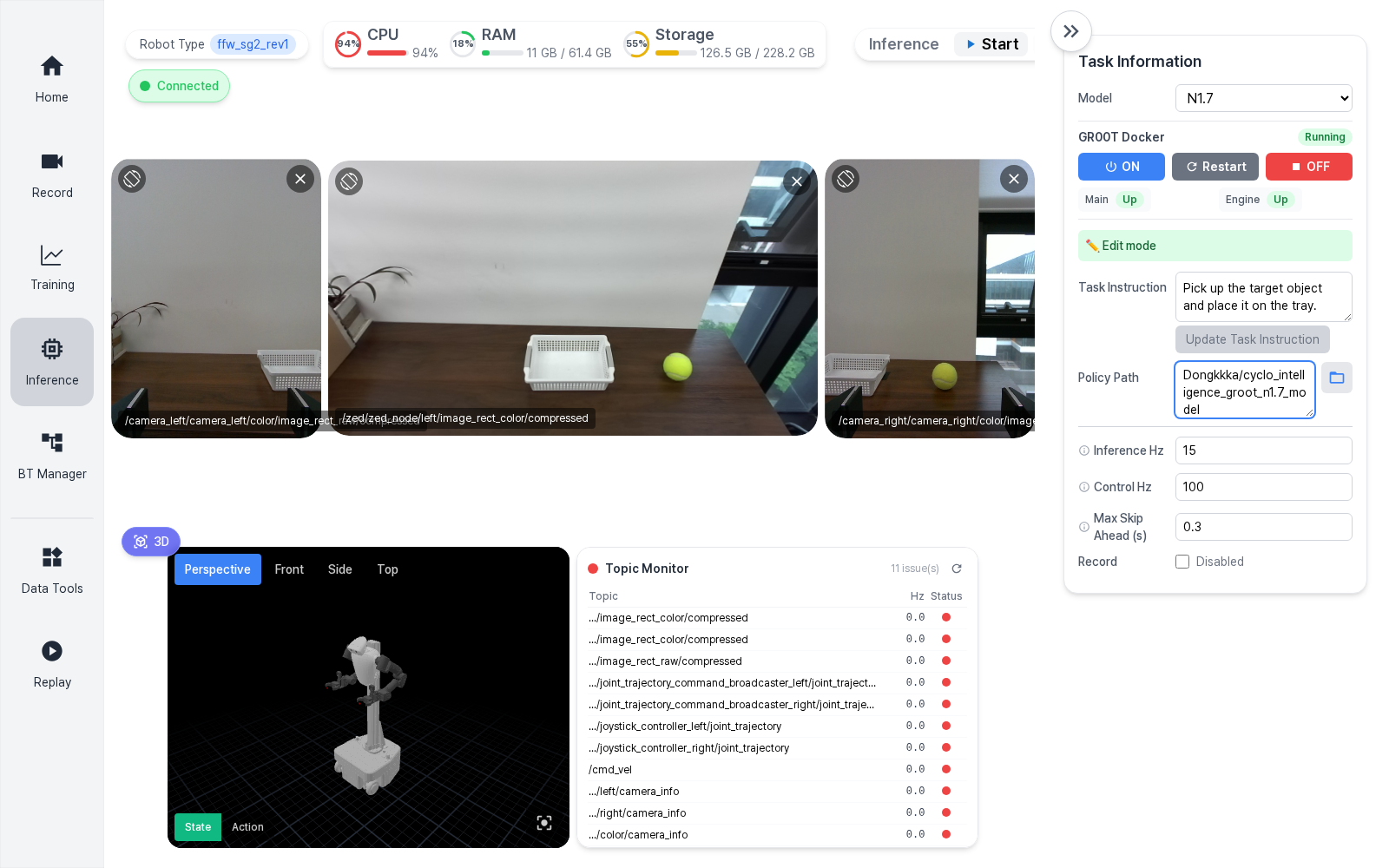
- Select
GR00T N1.7under theGR00Tgroup. - Check that
GR00T DockerisRunning. - Check that both
MainandEngineareUp. - Enter the task instruction in
Task Instruction. - Enter the model path in
Policy Path. - Click
Start. - To update the instruction during inference, edit the text and click
Update Task Instruction.
Example Hugging Face repo ID:
text
ROBOTIS/cyclo_intelligence_groot_n1.7_modelExample local checkpoint path:
text
/policy_checkpoints/groot/cyclo_intelligence_groot_n1.7_modelModel File Locations
Policy checkpoint folders are bind-mounted into each policy container.
| Backend | Host path | Container path |
|---|---|---|
| LeRobot | $HOME/cyclo_intelligence/cyclo_brain/policy/lerobot/checkpoints | /policy_checkpoints/lerobot |
| GR00T | $HOME/cyclo_intelligence/cyclo_brain/policy/groot/checkpoints | /policy_checkpoints/groot |
If the host model is here:
text
$HOME/cyclo_intelligence/cyclo_brain/policy/lerobot/checkpoints/Act_test_20kEnter this path in the UI:
text
/policy_checkpoints/lerobot/Act_test_20kTroubleshooting
Start Is Disabled
Check the backend status in the right panel.
Image missing: pull or install the required Docker image.StoppedorNot created: clickON.Warming up: wait until bothMainandEngineareUp.Main DownorEngine Down: clickRestart.
Model Load Failed
- Check that
Policy Pathis correct. - If you use a local path, make sure it is a container path such as
/policy_checkpoints/.... - If you use a Hugging Face repo ID, check network access and token permissions.
- Check that the selected UI model family matches the checkpoint type.
- Click
Clearto reset the inference session. - If it still fails, restart the Docker backend and try again.
Dataset Conversion Failed
- Check that the task folder exists under
/workspace/rosbag2. - Check storage space before retrying conversion.
- If a LeRobot output already exists for the same source dataset, delete or rename the old output before running conversion again.
- Retry the conversion from the dataset tools page.