
Getting Started with Gazebo
Overview
You can launch Gazebo and RViz (Moveit) individually, launch RViz together with physical hardware, and now run Nav2 with SLAM Toolbox in simulation to map the environment and test navigation before deploying to the robot.
Launch Gazebo
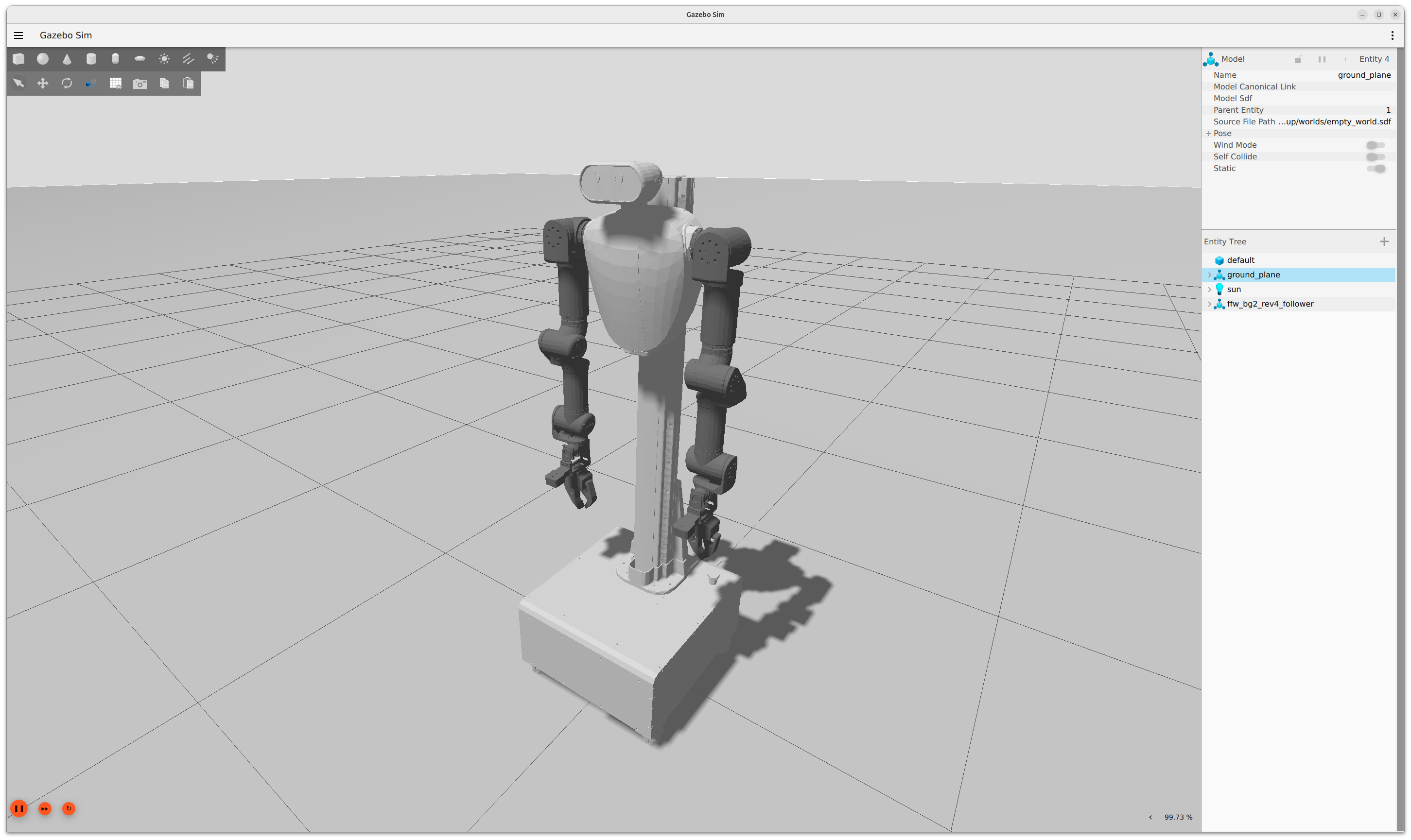
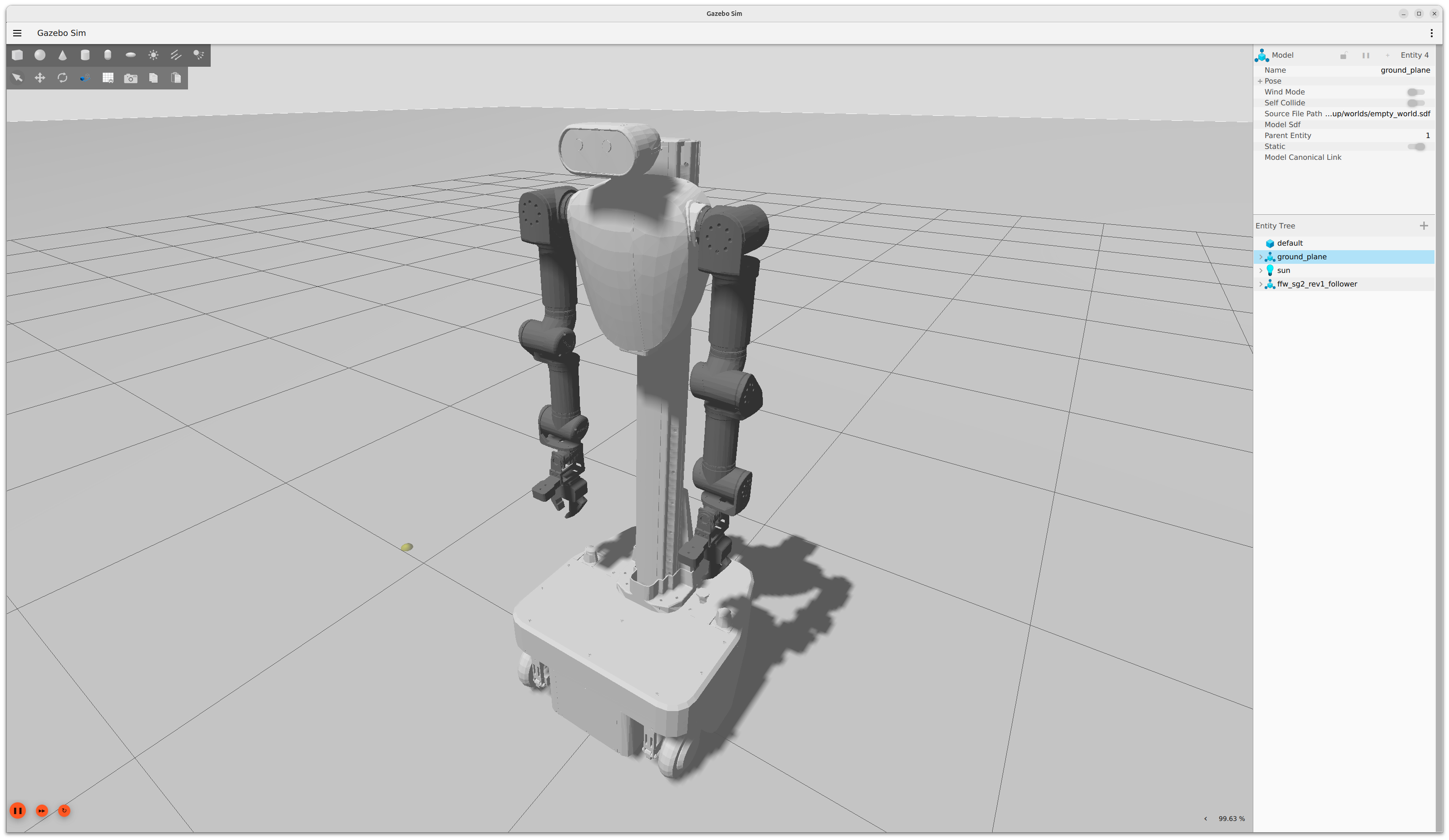
Launch Gazebo simulation: Use this command to run a dynamic simulation of the AI Worker in the Gazebo simulator.
bashros2 launch ffw_bringup ffw_bg2_follower_ai_gazebo.launch.pyView model in RViz only: Use this command when you want to visualize the robot model in RViz without running a full simulation or the physical hardware.
bashros2 launch ffw_description ffw_bg2_rev4.launch.pyLaunch RViz with physical hardware: Use this command when you want to operate the physical AI Worker hardware and monitor its status in RViz. This command will launch RViz alongside the hardware interface.
bashros2 launch ffw_bringup ffw_bg2_follower_ai.launch.py start_rviz:=true- Note: This command is the same as the
Followerlaunch command in theTeleoperation Guideand will also launch the cameras by default. To run without cameras, you can add thelaunch_cameras:=falseargument.
- Note: This command is the same as the
Simulation Views
FFW_BG2
FFW_SG2
Launch Moveit
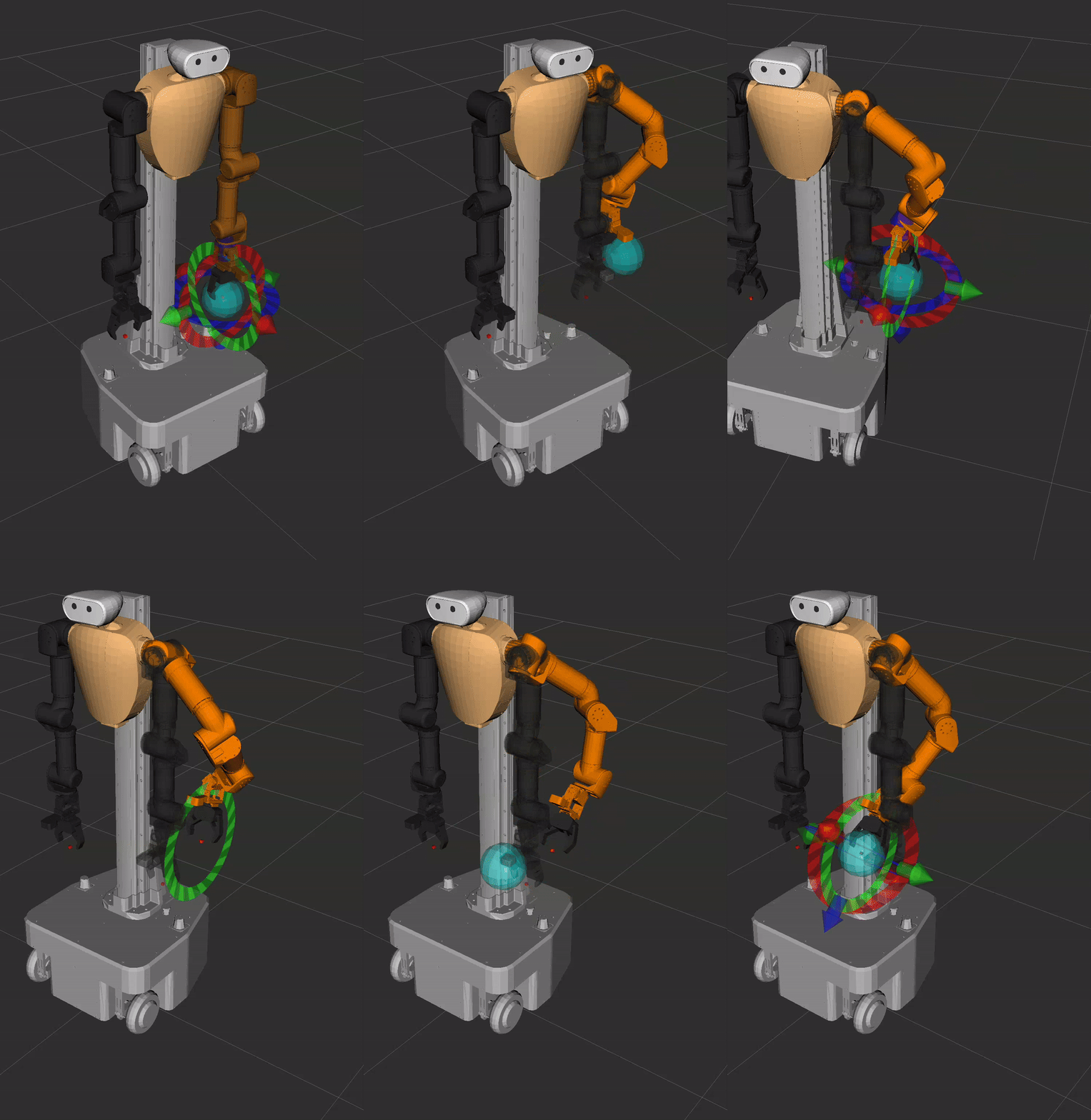
Launch Moveit: You can use the following command to launch Moveit for both FFW-BG2 and FFW-SG2:
bashros2 launch ffw_moveit_config moveit.launch.py # Launch Moveit with the AI Worker Follower model (FFW-BG2, FFW-SG2)If you are using Gazebo, you should add the argument
use_sim:=true:bashros2 launch ffw_moveit_config moveit.launch.py use_sim:=true # Launch Moveit in simulation mode
Launch Nav2 in Gazebo
Use Nav2 with the Gazebo simulation to test autonomous navigation before running on hardware.
- Start Gazebo simulation: Use one of the Gazebo launch commands.bash
ros2 launch ffw_bringup ffw_bg2_follower_ai_gazebo.launch.py
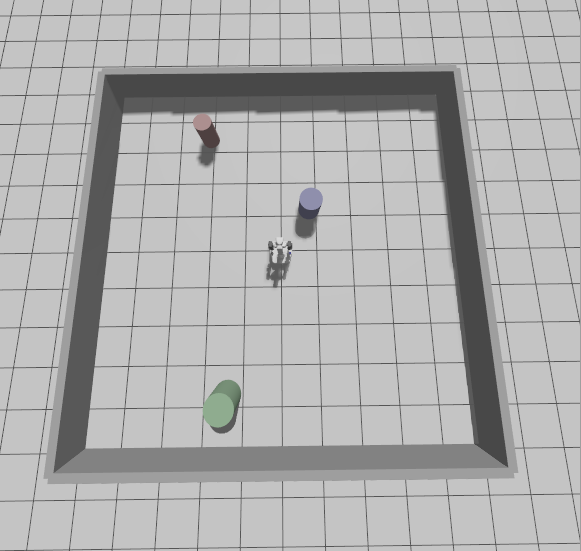
Gazebo View in the default world
Launch Nav2:
A default map matching the current gazebo world is provided. Remap with SLAM Toolbox if you change the world or want a new map.
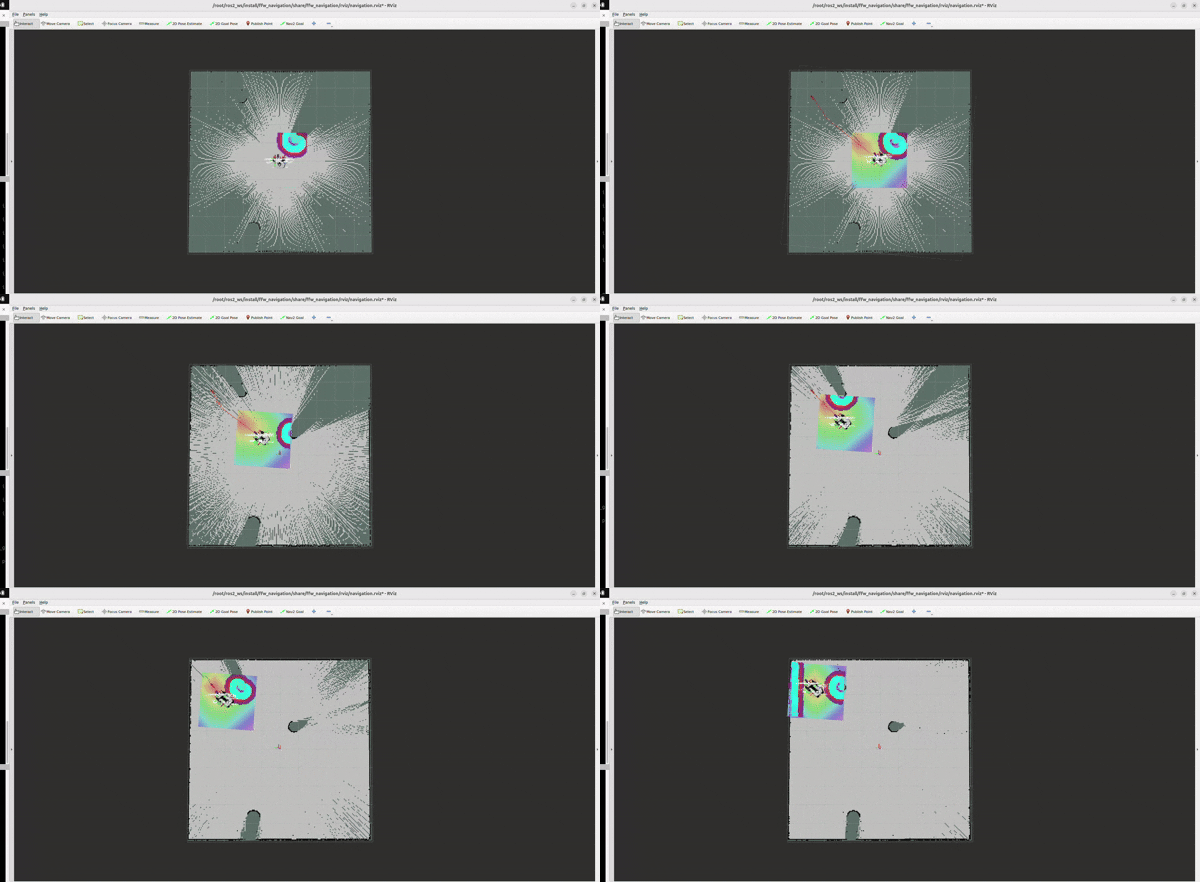
- Build a map with SLAM Toolbox:bashNav2 starts with SLAM enabled so you can map while driving. In RViz, send goals with
ros2 launch ffw_navigation navigation.launch.py use_slam:=true use_sim_time:=true2D Goal Poseto explore and expand the map.
SLAM Mapping Example
Save a generated map
If you ran SLAM and want to reuse the map, save it with:
bashcd ~/ros2_ws/src/ai_worker/ffw_navigation/maps ros2 run nav2_map_server map_saver_cli -f ./mapThis produces
map.yamlandmap.pgmin themapsdirectory. Change the path with-f /path/to/map_nameif needed.Saved Map Example
Example of a saved occupancy grid generated with
map_saver_cli: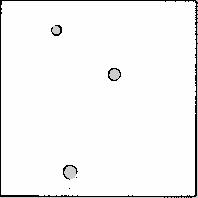 The map uses a two-dimensional Occupancy Grid Map (OGM). White is free space, black is occupied, and gray is unknown.
- Build a map with SLAM Toolbox:
Navigation Using a Saved Map
- Use a saved or default map:bashSet the initial pose in RViz with
ros2 launch ffw_navigation navigation.launch.py use_sim_time:=true2D Pose Estimateso AMCL can localize. After Nav2 is running, send a goal in RViz using2D Goal Pose. The robot will plan and drive to the target pose; if SLAM is enabled, the map updates in real time.